

LinkedIn Ads
- LinkedIn Ads Revenue Attribution
- LinkedIn Ads Customer Journeys
- LinkedIn Ads CRM Sync
- LinkedIn Ads Intent Signals
- LinkedIn Ads Optimization
- LinkedIn Ads Benchmarks

Google Ads

Meta Ads
Early accessCross-Channel
New


Setting up HubSpot Integration
Complete guide to installing, configuring, and using the Fibbler HubSpot integration
Table of Contents
Overview
Fibbler needs to connect to your HubSpot CRM system to collect data on your customer accounts and link it to your LinkedIn Ads tracking data. This enables you to create comprehensive attribution reports showing how your LinkedIn Ads influence your pipeline and revenue.
Historical data will appear immediately after you successfully connect HubSpot to Fibbler.
Installation and Setup
Follow these steps to install and connect your HubSpot account to Fibbler:
1. Navigate to Data Sources
In your Fibbler dashboard, go to 'Data Platform' and then select 'Sources'.
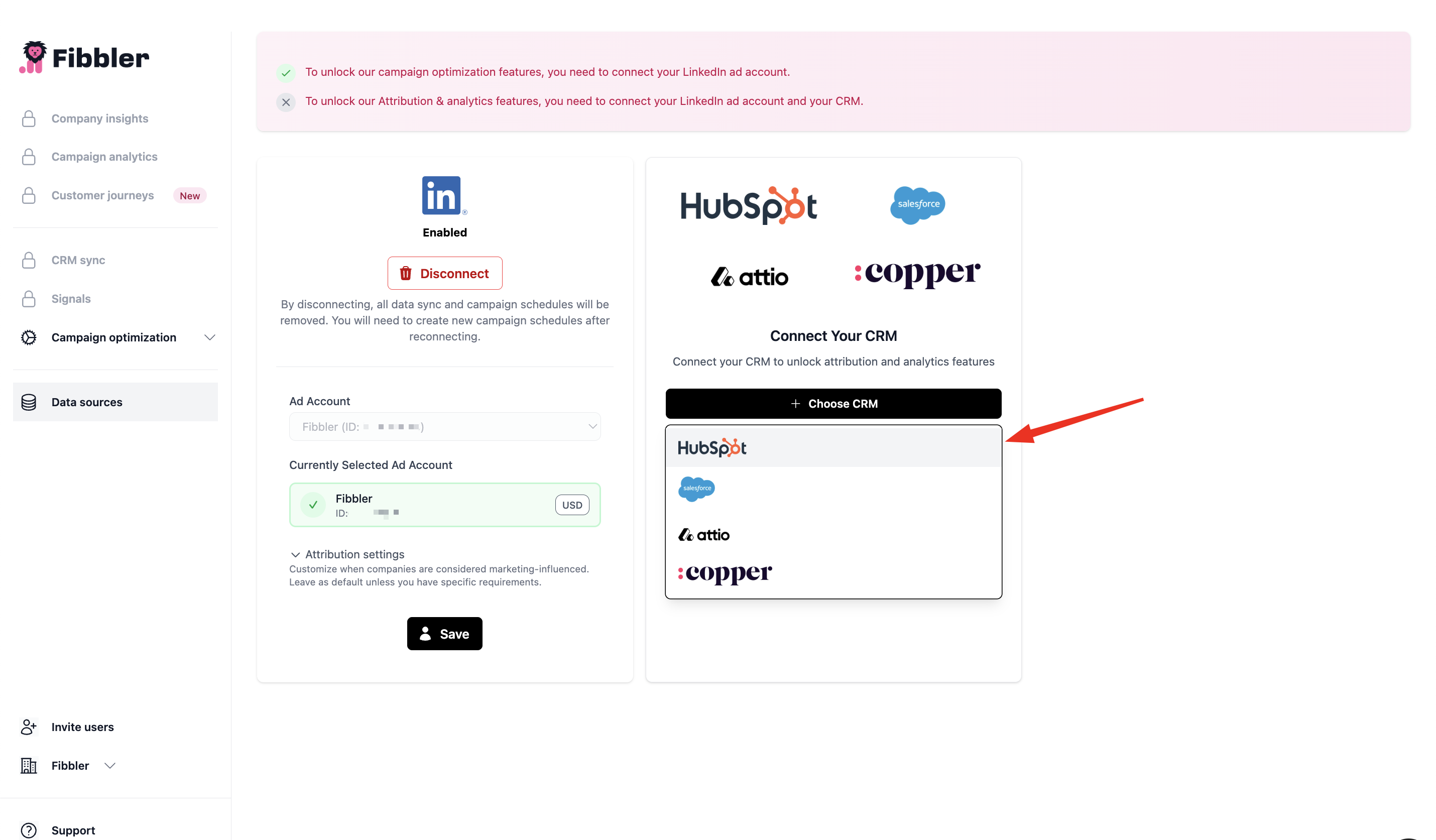
2. Find and Enable HubSpot
On the Sources page, locate HubSpot in the CRM category or use the search function. Click the 'Enable' button to begin the installation process.
A new tab will open to begin the HubSpot connection process.
3. Sign In to Your HubSpot Account
If you're not already signed in, you'll be prompted to enter your HubSpot credentials to authorize access.
The account you use needs to have Super Admin access in HubSpot. You also need permission to connect to third-party integrations within HubSpot.
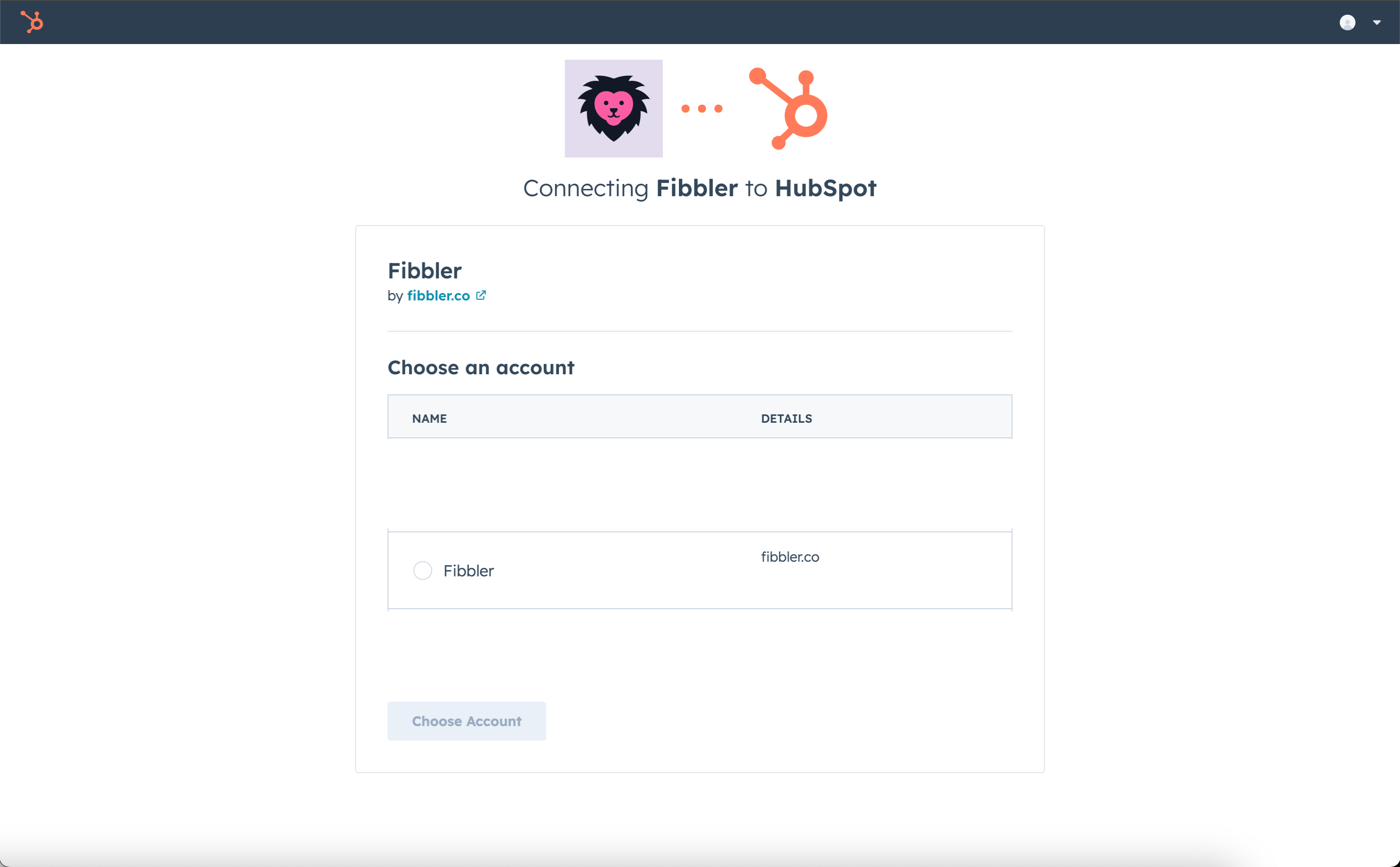
4. Select Your HubSpot Account
Choose the HubSpot account you wish to integrate with Fibbler from the list of available accounts, then click 'Choose Account'.
If you manage multiple HubSpot accounts, make sure to select the correct one.
5. Review and Approve Scope Permissions
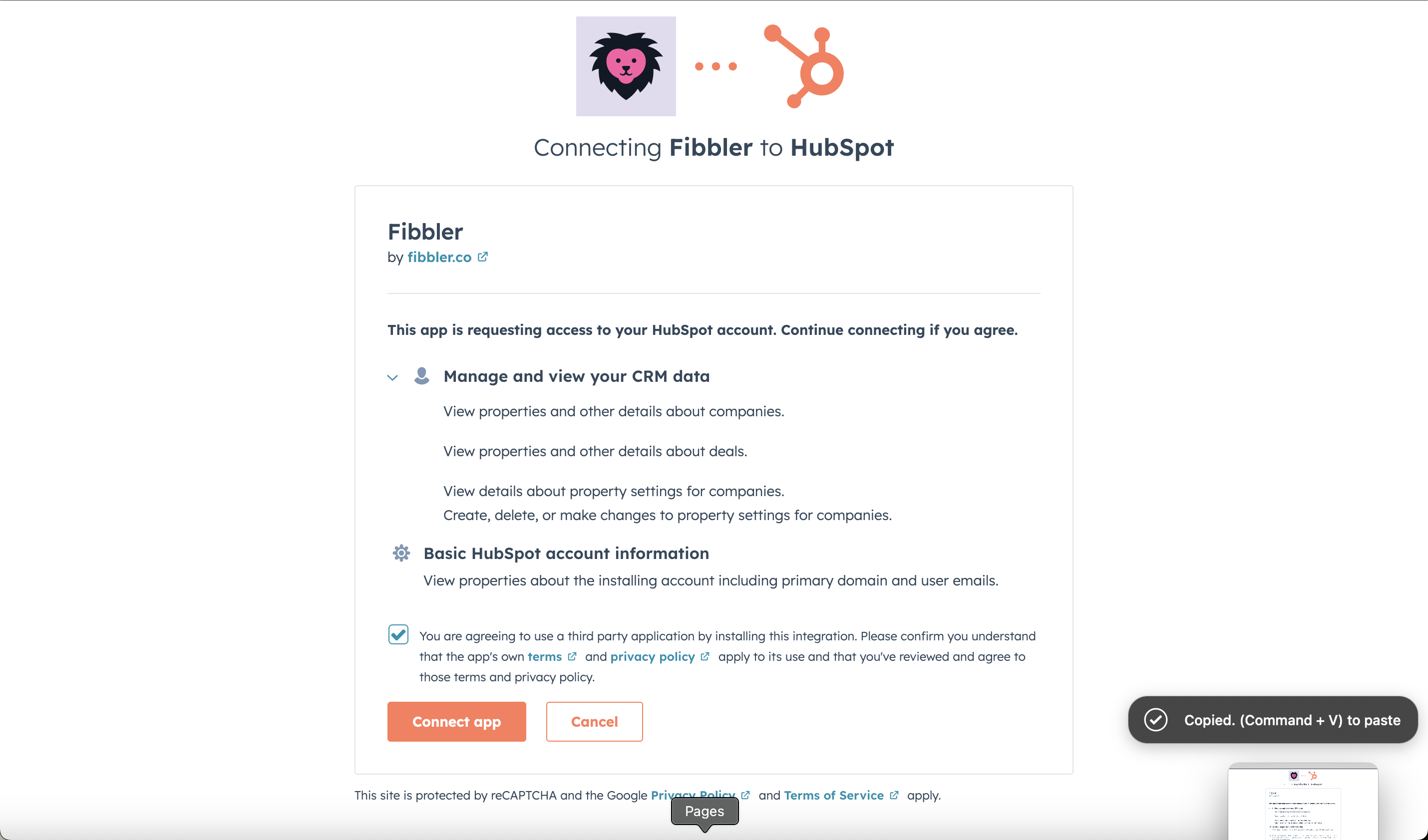
HubSpot will display a scope approval screen showing the permissions that Fibbler is requesting. Review these permissions carefully and click 'Connect to Fibbler App' to authorize the connection.
The permissions requested allow Fibbler to read your CRM data (companies and deals). If you enable CRM Sync, Fibbler will also create custom fields on your company records to store LinkedIn ad engagement data.
6. Complete the Connection
After approving the permissions, the connection will be finalized. You'll be redirected back to Fibbler where you should see a confirmation message.
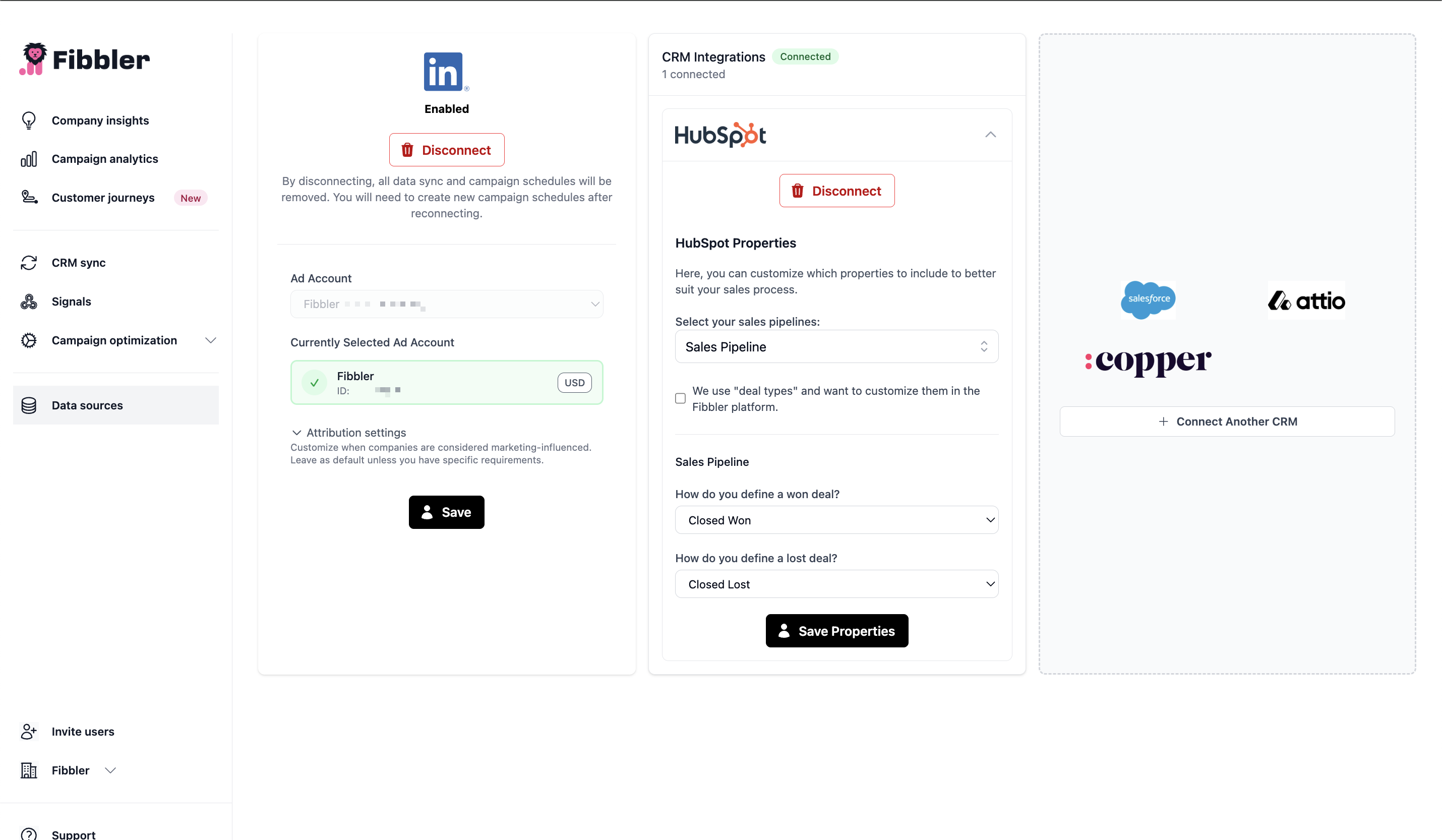
🚀 Installation Complete! Historical data will appear immediately after the connection is established.
Configuration After Installation
Once HubSpot is connected, you can configure how Fibbler syncs and uses your CRM data:
Set Sync Date Range
Choose how far back you want to sync historical data. Options typically include 7, 30, or 90 days. This determines how much historical pipeline data will be matched with your LinkedIn Ads data.
Configure Data Matching
We match companies between LinkedIn Ads and HubSpot primarily using the primary domain stored in HubSpot to maximize match rates.
Enable CRM Sync (Optional)
If you want Fibbler to sync LinkedIn Ads data back to HubSpot, you can configure this in the sync settings. This creates custom properties in your HubSpot account with the following metrics:
- Company website
- Paid impressions
- Paid clicks
- Paid engagements
- Organic impressions
- Organic engagements
Using the Integration
Manual Interactions
- View Company Insights: Navigate to the "Company Insights" section to see which companies from your LinkedIn Ads have records in HubSpot, along with their deal stage and value.
- Generate Attribution Reports: Create reports showing how your LinkedIn Ads influenced pipeline creation and revenue. Filter by date range, deal stage, or account.
- Export Data: Export matched company data and attribution insights to CSV for further analysis.
Automated Interactions
Automation runs only while you are connected. Sync back to HubSpot happens only if you explicitly enable CRM sync.
- Real-time Matching: When new LinkedIn Ads data comes in, Fibbler automatically matches it with existing HubSpot accounts primarily through domain, along with a few other signals.
- CRM Sync (if enabled): If you've enabled CRM sync, Fibbler will automatically create or update custom properties in HubSpot when it detects LinkedIn engagement signals for your accounts.
How Data is Mapped into Fibbler
Here's how your HubSpot data is mapped and used in Fibbler:
Companies
Your HubSpot companies are mapped to Companies in Fibbler. This enables you to see all of your sales and marketing activities for each company in one place. Companies are matched primarily through domain, along with a few other signals.
Deals
Your HubSpot deals are mapped to Deals in Fibbler. This gives you a clear picture of your sales pipeline, including the value of each deal and the stage of the sales process it's in. Deals are used for attribution reporting and revenue tracking.
Disconnecting HubSpot from Fibbler
To disconnect your HubSpot account from Fibbler without uninstalling the app:
Step 1: Navigate to Data Sources
Go to "Data Platform" → "Sources" in your Fibbler dashboard.
Step 2: Locate HubSpot
Find HubSpot in your list of connected sources. You should see it shows as "Connected" or "Active".
Step 3: Disconnect
Click on HubSpot and select "Disconnect". Confirm the disconnection when prompted.
Note: Disconnecting stops any further API reads. When you disconnect, Fibbler will delete stored CRM data within 30 days.
Uninstalling the Fibbler App from HubSpot
To completely uninstall the Fibbler app from your HubSpot account:
Step 1: Open HubSpot Settings
In your HubSpot account, click the settings icon (⚙️) in the top navigation bar.
Step 2: Navigate to Integrations
In the left sidebar, go to "Integrations" → "Connected Apps" or "App Marketplace" → "Installed Apps".
Step 3: Find and Uninstall Fibbler
Locate the Fibbler app in your list of installed apps and click on it. Then select "Uninstall" or "Remove" and confirm the action.
Additional Information
For more detailed instructions on uninstalling apps from HubSpot, you can refer to the HubSpot Knowledge Base article on uninstalling apps.
Effects of Disconnecting and Uninstalling
When You Disconnect HubSpot
- Your HubSpot account and data will not be affected
- No data will be deleted from your HubSpot account
- Syncing stops immediately. Stored CRM data will be deleted within 30 days of disconnection.
When You Uninstall the App
- All API connections between Fibbler and HubSpot will be permanently revoked
- No new data will sync from HubSpot to Fibbler
- Stored CRM data will be deleted within 30 days
- If CRM sync was enabled, no new data will be written back to HubSpot
- Any custom properties or objects created by Fibbler in HubSpot will remain (they are not automatically deleted)
- Your HubSpot account data will not be deleted or modified
- To use Fibbler with HubSpot again, you'll need to reinstall the app and reconnect. Data is only available while connected and using Fibbler.
Data Privacy and Security
Fibbler respects your data privacy. When you disconnect or uninstall:
- No data is deleted from your HubSpot account
- Stored CRM data will be deleted within 30 days of disconnection or account cancellation
- Access tokens are immediately revoked when you disconnect or uninstall
Need Help?
If you encounter any issues during installation, configuration, or have questions about using the HubSpot integration, please contact our support team or visit our documentation.