

LinkedIn Ads
- LinkedIn Ads Revenue Attribution
- LinkedIn Ads Customer Journeys
- LinkedIn Ads CRM Sync
- LinkedIn Ads Optimization
- LinkedIn Ads Benchmarks

Google Ads

Meta Ads
Cross-Channel
Ad Signals
New



How to Connect Google Ads to Salesforce for Revenue Attribution in 2026
Quick Summary
In 2026, relying on GCLIDs and direct form fills to connect Google Ads to Salesforce is a recipe for revenue blind spots. Fibbler identifies the companies behind anonymous search clicks, syncing that engagement directly to your CRM to connect hidden ad activity to real pipeline.
Stop Guessing Which Keywords Correlate With Revenue
Running B2B Google Ads often creates a persistent visibility gap between your marketing spend and CRM. Google Ads reports impressions and clicks, but these metrics rarely reveal the actual businesses engaging with your brand. A company might click your ads and visit your site multiple times, yet unless someone from that organization fills out a form, that entire high-intent journey never reaches your CRM.
This guide covers why native integrations fail B2B teams and how to bridge the gap using company-level identification.
Why Listen to Us?
We built Fibbler after seeing B2B demand gen teams struggle to connect ad spend to real pipeline. As an Official LinkedIn Marketing Partner trusted by over 2,000 performance marketers, we focus on revenue attribution, not shallow metrics.
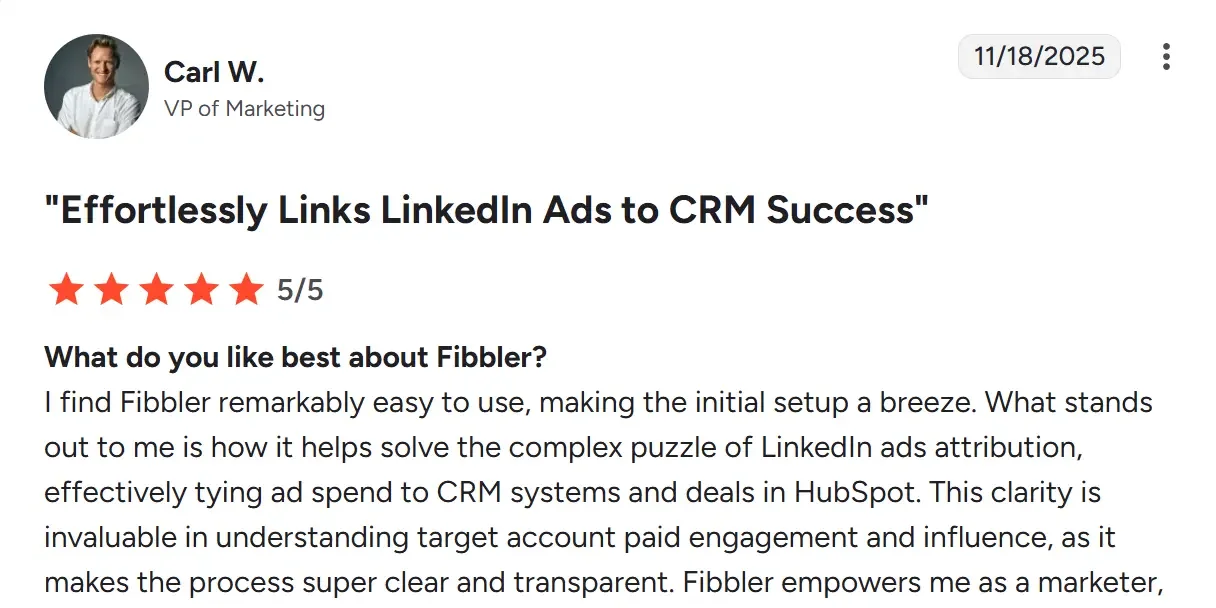
Here's what a customer had to say:
This guide is built around the exact workflows our most successful customers use to bridge that attribution gap.
Is the Native Google Ads to Salesforce Integration Enough for B2B?
Google Ads offers a native 'Data Manager' connection to Salesforce that sends GCLID (Google Click ID) data to your CRM and imports offline conversions back into your dashboard.
But there is a catch. The native link remains dormant until a lead is created in Salesforce-a milestone that typically requires a prospect to click an ad, land on your site, and manually identify themselves through a form fill.
Because B2B buyers are typically 70% through their purchasing process before ever engaging with a seller, triggering attribution only at a form fill creates a massive blind spot, missing weeks or months of high-intent search activity.
To bridge this gap, top-performing teams rely on a layer like Fibbler to capture intent before it fades.
The Limitations: Why Native Integration Fails B2B Teams
Native integration sounds great on paper, but for a B2B SaaS company, it is often misleading. Here is why the "Standard Way" leaves you with a massive attribution gap in 2026:
The "Click-to-Lead" Trap
Native integration only works if a user clicks an ad and fills out a form in the same browser session. In B2B, the journey is rarely that linear.
If a CEO clicks your Google Ad on Tuesday but their assistant fills out the form on Friday via a direct search, Google Ads gets zero credit. The system records a "Direct" lead, hiding the fact that your search spend was likely the first touch in the conversation.
You're left paying for the lead but unable to see which ad was involved in the deal.
The GCLID is Fragile
Modern browsers and privacy-first updates like Apple's ITP (Intelligent Tracking Prevention) often strip out the GCLID. By the time a lead converts, the "click ID" is often gone. As a result, your Salesforce data may end up full of "Unknown" sources, making it impossible to scale your best-performing campaigns.
Individual vs. Account Perspective
While Google Ads tracks individuals, B2B sales occur at the company account level. This mismatch causes native integrations to treat different clicks from 'Company X' as disconnected events. Ultimately, you lose the vital insight that your search spend effectively 'warmed up' the entire account over a three-month journey.
It Ignores the Dark Journey
Most B2B buyers research anonymously - clicking ads and reading blogs long before identifying themselves. Because native integrations remain blind to this intent until a form is filled, teams often miss the 'hot' accounts currently evaluating their products.
How Fibbler Bridges the Gap
This is where Fibbler comes in. By replacing fragile click-links with company-level identification, Fibbler's Google Ads Identification Add-on uncovers the actual business entity behind your search traffic. Even without a form fill, the system captures that engagement, connecting anonymous company-level activity directly to Salesforce revenue and pipeline.
Here's what that unlocks in practice:
Uncover Hidden Pipeline
Most search budgets are spent on companies that don't convert immediately. The Google Ads Add-on reveals which Salesforce Accounts are actively engaging with your ads, surfacing influenced pipeline that native tracking misses entirely. Because Fibbler identifies the company domain rather than relying on a GCLID, it can match ad engagement to a Salesforce Opportunity even when privacy updates like Apple's ITP have stripped the click ID.
Faster Account Prioritization for Sales
Through Fibbler's CRM sync, SDRs can see when a Google Ad website visit occurs on Salesforce account records without a form fill. This allows teams to prioritize high-intent accounts and trigger instant sales alerts to act before a buyer ever self-identifies.
Align Marketing and Sales Around Shared Data
Fibbler pushes engagement signals directly into Salesforce at the account level, giving both teams a single source of truth. Marketing can pinpoint which companies engaged with ads and how that engagement connects to real revenue opportunities. Sales sees exactly which campaigns are warming up their pipeline accounts. No more reconciling disconnected dashboards.
Optimize Ad Spend for Maximum Pipeline
Without precise attribution, marketing dollars often go to campaigns that generate attention but no deals. Fibbler identifies the campaigns and ad groups that genuinely move accounts forward, enabling smarter budget allocation and ensuring every dollar contributes to measurable pipeline growth.
How to Integrate Google Ads with Salesforce Using Fibbler (Step-by-Step)
Setting up this bridge is an easy process that takes under 30 minutes. Here's how:
Step 1: Run Google Ads to High-Intent Searchers
The first step is generating meaningful engagement by targeting bottom-of-funnel (BoFu) keywords that indicate buying intent.
We suggest:
- Running Search or Performance Max (PMax) campaigns
- Focusing on landing page views rather than just form submissions
- Targeting "Competitor Alternative" or "Pricing" keywords
These ideas should help drive high-intent traffic at the company level, ensuring every signal that reaches Salesforce is worth a salesperson's time.
Step 2: Install Leadfeeder Pixel on Your Website
The Leadfeeder pixel allows Fibbler to identify companies visiting your site after clicking ads.
- Log in to your Fibbler dashboard
- Navigate to data sources
- Copy tracking script
- Install it on your website's global header (or through a tag manager)
- Verify the installation inside Fibbler
Fibbler can now detect companies visiting your site and associate their activity with ad engagement.
Step 3: Link Your Google Ads Account
Authorizing your Google Ads account allows Fibbler to ingest and analyze campaign engagement data.
- Navigate to the data sources tab in Fibbler.
- Select the Google Ads module.
- Sign in to your Google account to grant Fibbler secure access.
- Pick the specific ad account you want to deanonymize.
Step 4: Activate CRM Sync
Connecting Salesforce to Fibbler gives your sales team a transparent view of which high-value accounts are actively researching your solutions through paid search. CRM Sync pushes Google Ads company visit data directly into Salesforce at the account level, with no manual exports or spreadsheet reconciliation required.
Here's how to set it up:
- In your Fibbler dashboard, navigate to Google Ads CRM Sync
- Enable the Google Ads sync and choose your lookback windows: 7, 30, and/or 90 days
- Optionally, create campaign-specific sync groups (e.g., "Brand Campaigns" or "Product Keywords") to track visits at a more granular level
Once connected, Fibbler will automatically create custom fields on your Salesforce Account records and begin syncing Google Ads visit data. The sync runs weekly (every Sunday), matching anonymous Google Ads clicks to your existing Salesforce Accounts by company domain.
Important: CRM Sync only writes to accounts that already exist in your CRM. Fibbler never creates new records.
Step 5: Configure Your Sync for Maximum Signal Quality
Once CRM Sync is active, fine-tune the settings to ensure your sales team gets the most actionable data without noise.
We recommend you:
- Choose your lookback windows: Enable 7-day for recent intent, 30-day for active evaluation cycles, and 90-day for full buyer journey visibility. You can toggle each on or off depending on your sales cycle length.
- Set up campaign-specific groups: If you're running multiple campaign types (brand, competitor, product keywords), create separate sync groups so your team can see exactly which campaigns are driving account engagement.
- Build automation rules in Salesforce: Use the synced custom fields to trigger workflows. For example, create a task for the account owner when a company's 7-day visit count crosses a threshold, or update a lead score when 30-day engagement is high.
Effective filtering keeps your CRM organized and ensures the sales team focuses exclusively on accounts demonstrating genuine buyer intent.
Step 6: Set Up Signals for Real-Time Alerts (Optional)
While CRM Sync handles pushing Google Ads data directly into Salesforce, you can also use Fibbler's Signals feature to trigger real-time alerts in tools like Slack or Clay when high-intent engagement occurs.
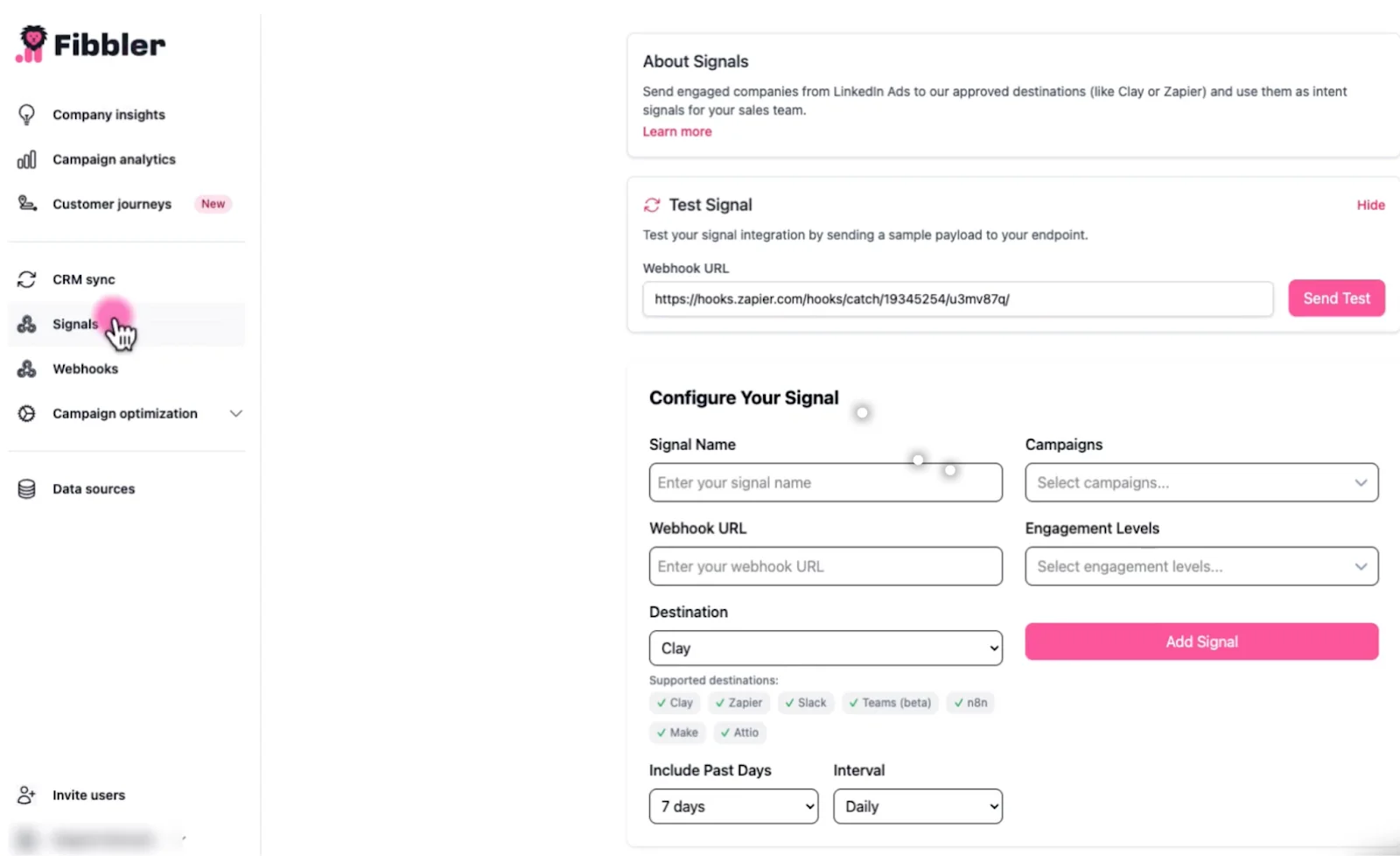
Signals don't send data to your CRM. They're designed for instant notifications and workflow triggers in external tools.
On the dashboard, locate Signals and set the following:
- Signal Name: (e.g., "Google Ads Intent to Slack")
- Destination: Choose from Slack, Clay, Zapier, Make, or n8n
- Webhook URL: Paste the endpoint from your destination tool
- Include Past Days: Choose 7, 30, 60, or 90 days
- Interval: Choose "Daily" for real-time sales prioritization or "Weekly" for summary updates
- Campaigns: Select your high-priority Google Search campaigns
This is especially useful for alerting SDRs in Slack when a target account clicks your Google Ads, or for feeding company visit data into Clay for enrichment and outbound list-building.
Step 7: Turn Google Ads Data into Sales Action
Once your CRM Sync is active, Salesforce automatically updates your account records with Google Ads visit data, creating a clear map of how your ads are moving the needle.
Your CRM will now show key information including:
- Which accounts are actively visiting your site from Google Ads
- How many visits they've had in the last 7, 30, and 90 days
- Which campaigns or ad groups are driving that engagement (if you've set up campaign-specific sync groups)
This data helps your team to:
- Prioritize outreach to the highest-intent accounts
- Reconnect with old prospects showing renewed search activity
- Prove your ad spend works with account-level attribution data tied directly to pipeline
Transform Your Ad Clicks into Active Pipeline
Native Google Ads to Salesforce integrations are built for a world that doesn't exist in B2B anymore. They assume everyone clicks, accepts cookies, and fills out a form on the first visit.
By using Fibbler as your bridge, you capture the 90% of the buyer journey that happens in the "dark." You move from tracking anonymous clicks to tracking real company-level revenue.
Ready to see which companies are actually clicking your Google Ads?
Start your 30-day free trial of Fibbler today.
Google Ads Salesforce Integration FAQ
Is Fibbler compatible with other CRMs besides Salesforce?
Yes - Fibbler supports integrations with other CRM platforms such as HubSpot, Attio, and Pipedrive, allowing you to sync ad engagement and intent signals directly into those systems as well. This makes it flexible for teams using different CRMs to map intent data back to accounts and pipeline.
How does Fibbler track revenue if the GCLID is blocked?
Native tracking breaks when privacy tools strip the "Click ID." Fibbler identifies the company domain instead of a cookie. This lets you attribute revenue to ad campaigns based on account-level influence, even when traditional tracking links fail.
Does Fibbler Add-on replace the native Salesforce "Data Manager?"
Not necessarily - it enhances it. The native link tracks "hard" conversions (form fills), but Fibbler captures the 75% of the journey that happens anonymously. Use both to track known leads and reveal the "ghost pipeline" of companies researching you in secret.
Can Fibbler connect multiple CRMs at the same time?
Fibbler integrations are managed at the account level, allowing teams to align the CRM sync with their specific pipeline management tool. For organizations running multiple CRMs, separate accounts can be set up to ensure Leadfeeder-powered intent data flows into each of them.
Will this clutter my Salesforce with junk data?
No. Fibbler acts as a silent data layer. It maps intent directly to your existing Accounts and Opportunities, ensuring your sales team only sees high-intent activity from relevant businesses rather than a list of anonymous clicks.
Can Fibbler track multi-touch engagement across campaigns?
Yes. Fibbler consolidates signals from multiple Google Ads campaigns and touchpoints, giving you a clear view of which accounts are repeatedly engaging and how they move through the buyer journey.
Written by

Adam Holmgren
CEO @ Fibbler

Prove paid ads drive pipeline
Fibbler helps you see which companies view or engage with your LinkedIn, Google and Meta Ads, and connect them to pipeline and revenue in your CRM.
Try 30 days for free
Prove paid ads drive pipeline
Fibbler helps you see which companies view or engage with your LinkedIn, Google and Meta Ads, and connect them to pipeline and revenue in your CRM.
Try 30 days for free