Cross-channel insights
Cross-channel insights shows how many of your new deals your LinkedIn, Google Ads and Meta Ads influenced, which channels each company came in through, and which showed up first.
It's about how your channels work together, not which one wins. Each channel shows up at a different point before a deal, so many deals had more than one channel there before them. That's why there's no ranking of channels here, and no ad spend.
You find it in the menu under Cross-channel insights. It's there once you have Google Ads or Meta Ads next to LinkedIn Ads.
When a deal is influenced
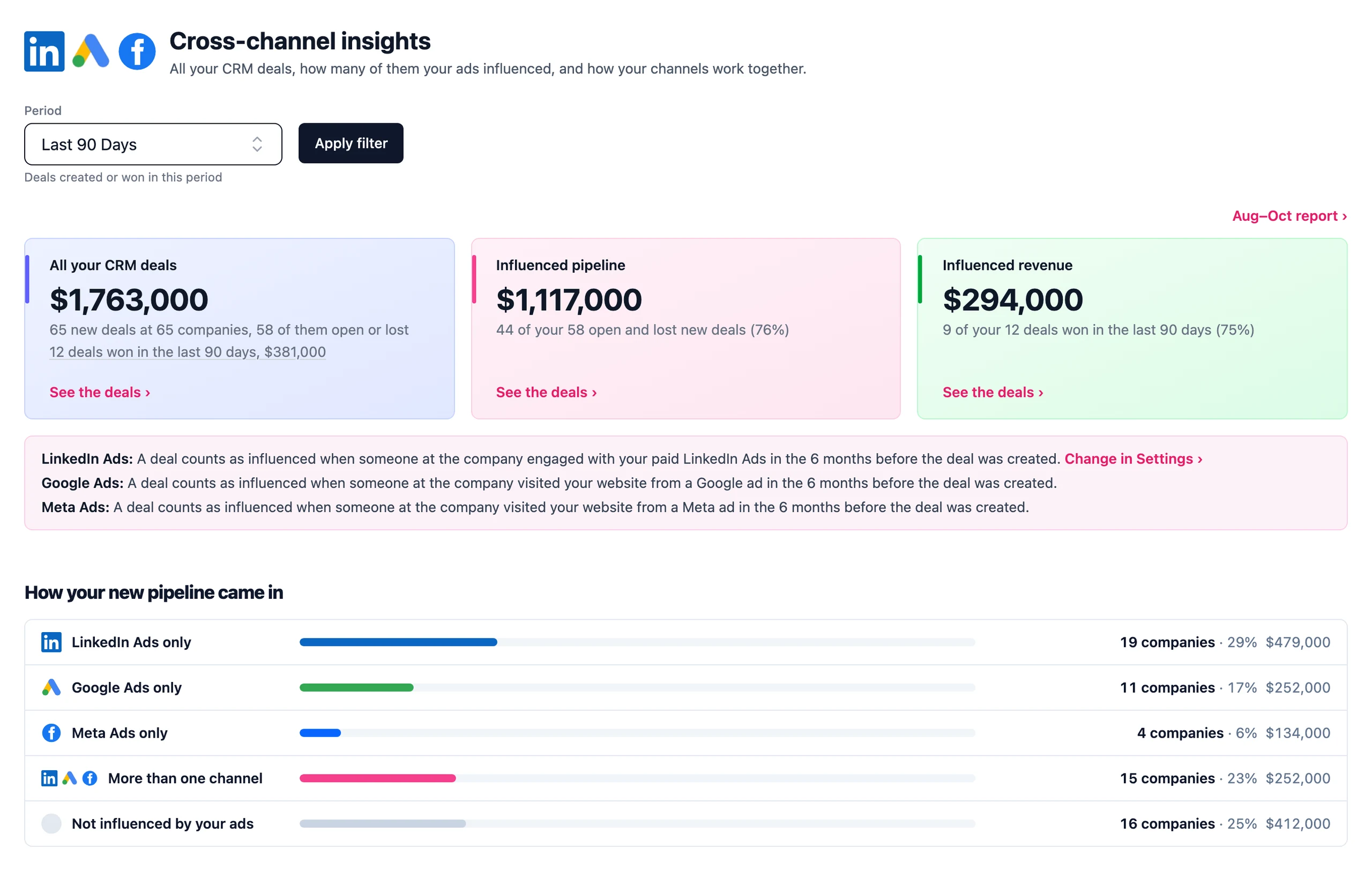
Each channel has its own rule. LinkedIn uses your rule from What counts as influenced, and Google Ads and Meta Ads need one website visit in the same months. The box under the cards shows each channel's rule. On Company insights, once a company is influenced, all its new deals are in influenced pipeline. Here each deal has to be influenced on its own, so the number can be a bit lower.
Each deal shows once, so a deal both LinkedIn Ads and Google Ads influenced is one deal, not two.
Your CRM deals, and what your ads influenced
The page opens on the last 90 days. You can pick the last 7, 30, 60 or 90 days, or whole months. There are three cards, and each one shows deals:
- All your CRM deals is every deal created in the period in the pipelines you picked on Data sources, for example "102 new deals at 87 companies, 80 of them open or lost". Click the line under it, for example "22 deals won in Jul–Sep, $310,000", to see every deal won in the period, whenever it was created.
- Influenced pipeline is the open and lost new deals at least one channel influenced, and their value, for example "61 of your 80 open and lost new deals (76%)". Won deals are in influenced revenue.
- Influenced revenue is the deals won in the period that at least one channel influenced, for example "16 of your 22 deals won in Jul–Sep (73%)".
Click a card to see its deals, biggest first, with the channels each one came through, its stage, and when it was created and closed. The Influenced pipeline and Influenced revenue popups also show your ads' share of the deals month by month for the last 12 months, and how the period compares with the one before.
How your new pipeline came in
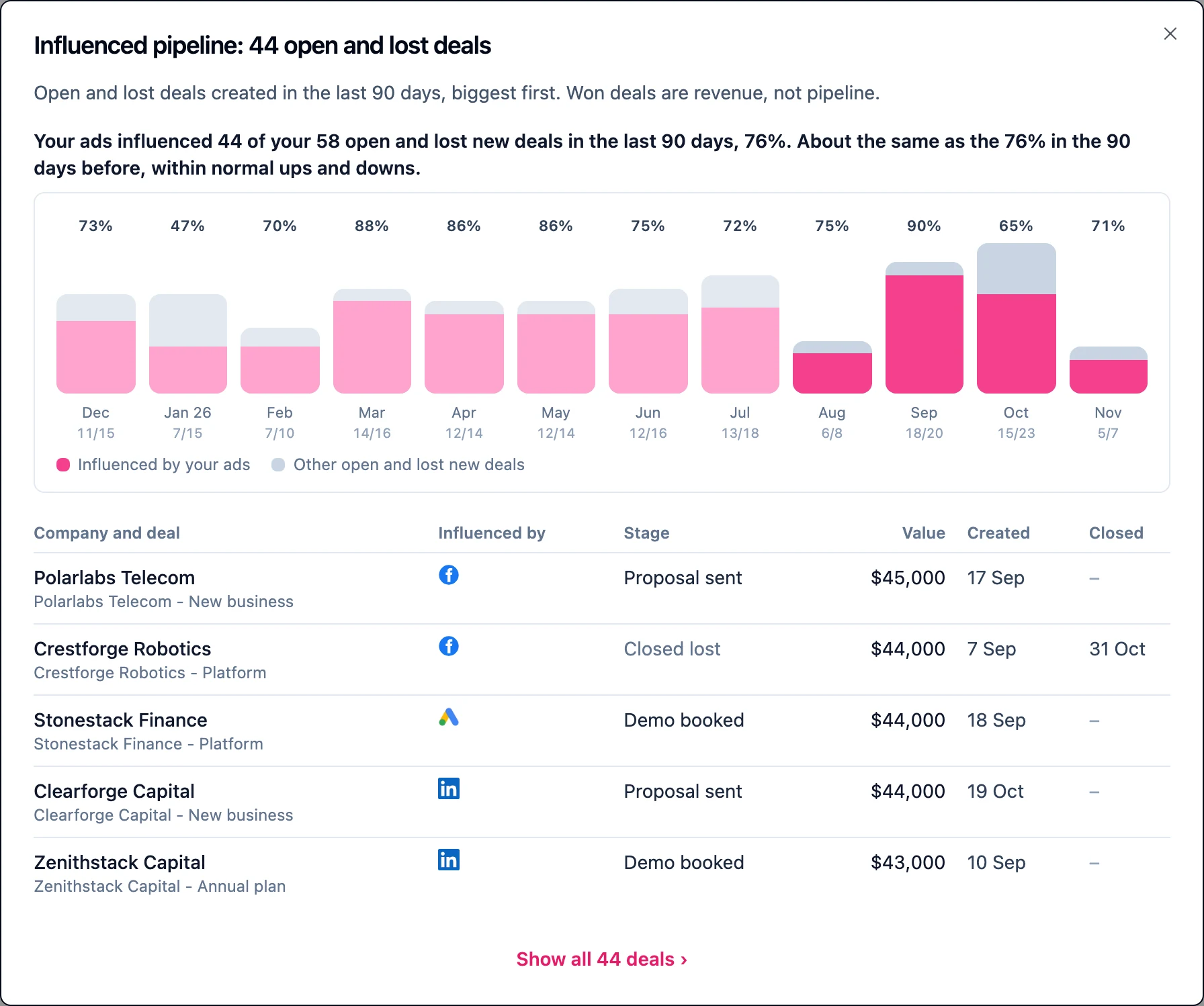
Every company with a new deal in the period sits in exactly one row: LinkedIn Ads only, Google Ads only, Meta Ads only, More than one channel or Not influenced by your ads. So the rows add up to all your new companies. If your rule also includes organic LinkedIn and some deals were influenced by organic posts alone, the page says LinkedIn instead of LinkedIn Ads. A row's amount is the value of its companies' influenced open and lost deals (for Not influenced, all their open and lost deals), so the influenced rows add up to Influenced pipeline. Click a row to see its companies and deals.
Which channel came first
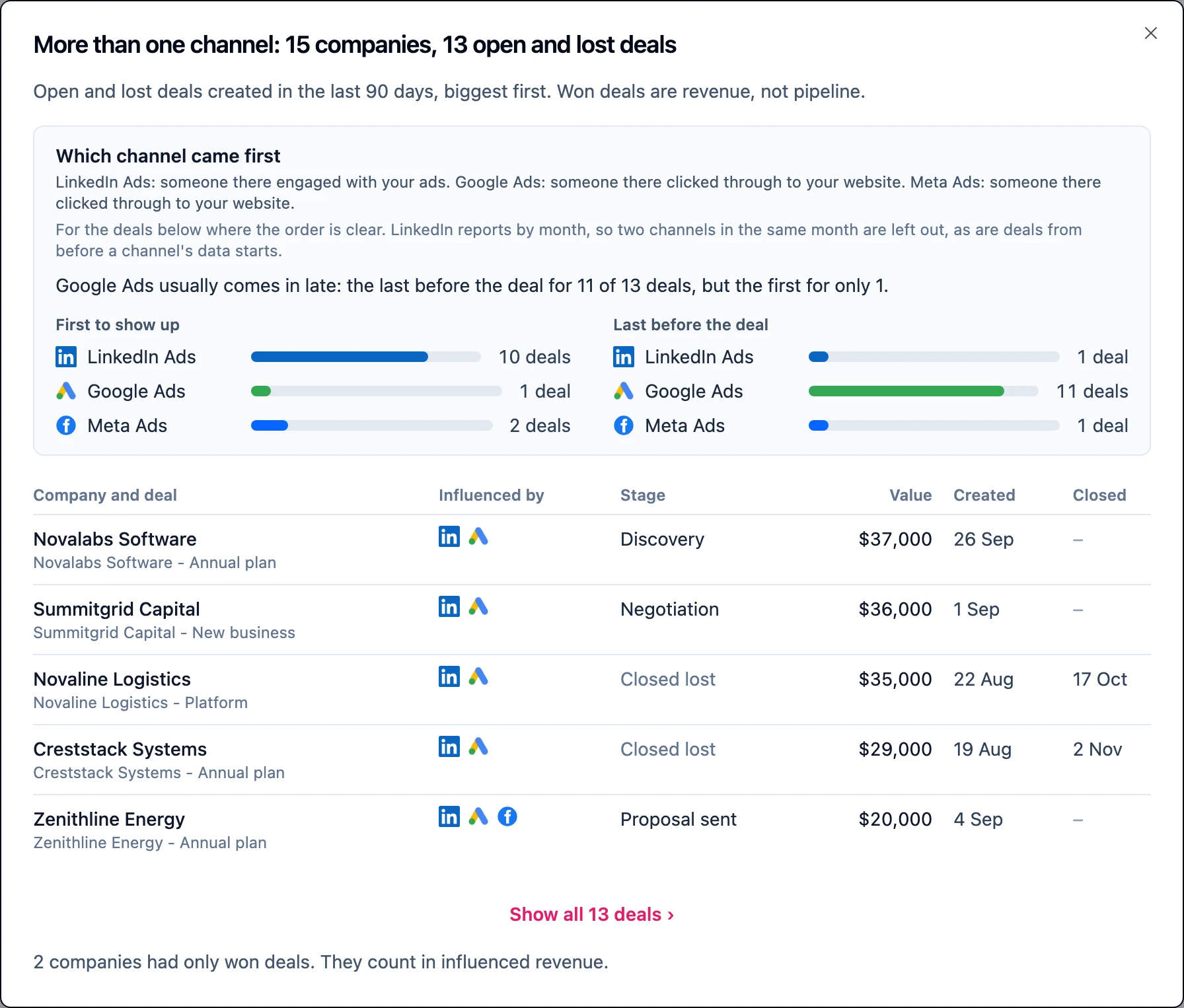
Click More than one channel and the popup shows a box called Which channel came first. For the deals in that row, it shows which channel showed up first (First to show up) and which was the last one before the deal was created (Last before the deal). We go by month, because LinkedIn reports by month. If two channels show up in the same month, we can't tell which came first, so we leave that deal out. The same goes for deals from before a channel's data starts. If too few deals have a clear order, the box says so.
When one pattern is clear, a line in the box says it, for example "Google Ads usually comes in late: the last before the deal for 11 of 13 deals, but the first for only 1." It shows the order things happened in, not that one channel caused another.
The report
Click the report link at the top, for example Jul–Sep report, to get the months you picked on one page, or the last 3 full months if you're on a rolling period, against the period before. Download it as a PDF and send it on. Reports
When a channel is new
We only have Google Ads and Meta Ads visits from the day our tracking script went live. In the first 30 days, a note at the top says tracking is still running, and the numbers fill in as the days go by.
What you need
You need LinkedIn Ads and a CRM connected, plus Google Ads or Meta Ads (or both). The page shows up in the menu once Google Ads or Meta Ads is connected and you have access to it, through the add-on or the 30-day trial. A channel joins the page once you've picked an ad account for it. If you have more than one CRM connected, you pick which one to use. Google Ads and Meta Ads are add-ons, and both are in the free trial. Plans and features