Get started with Fibbler in 5 minutes
Fibbler connects your LinkedIn Ads to your CRM, so you can see which companies your ads reached and engaged, and which of them came into your pipeline. Setup is two steps on the Data sources page: connect LinkedIn Ads, then connect your CRM. After that we import your last 12 months, and you can start looking at your data.
What you need before you start
- A LinkedIn login with the Campaign Manager role or higher on your ad account. Connect LinkedIn Ads
- A CRM login that can see all your deals. Who that is depends on your CRM, and each CRM's page tells you.
- An Owner, Admin, Manager or Customer role in Fibbler. The person who signs up is the Owner.
- Someone who will keep their access, because each connection runs on the login of the person who made it.
You don't need anyone from IT for LinkedIn Ads. For the CRM, some companies only let an admin approve new apps, so it's worth checking that first. We list it for every source in The access you need to connect.
Sign up
Create your account at app.fibbler.co/signup. Pick Continue with Google, Continue with Microsoft, or your work email. With Google or Microsoft you skip the confirmation code and the password. With email, we send you a confirmation code, and then you add your name, company and a password. No credit card needed for the 30-day free trial.
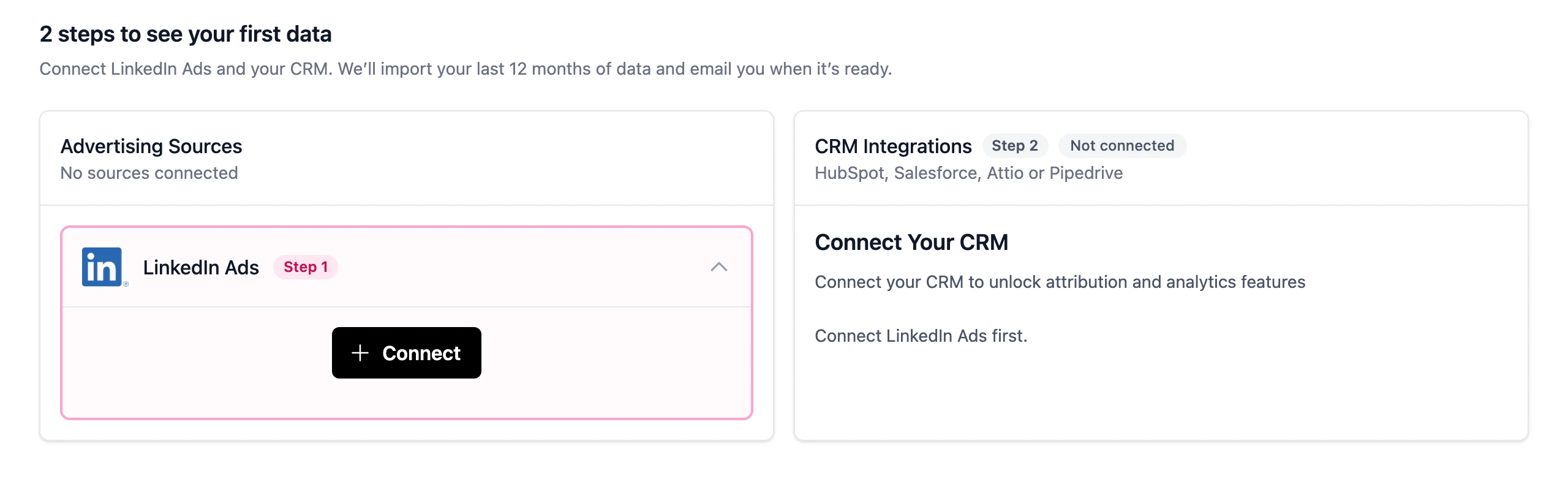
You land on Data sources, where it says 2 steps to see your first data. The LinkedIn Ads card is Step 1 and the CRM card is Step 2. Until both are done and your data is in, the LinkedIn Ads, Google Ads and Meta Ads pages stay closed in the menu. In the menu, Data sources shows how many of the 2 steps you've done.
Connect LinkedIn Ads (Step 1 in the app)
Open the LinkedIn Ads card on Data sources, click Connect and sign in to LinkedIn.
When you come back to Fibbler you'll see "Action Required: Select Your Ad Account". Pick the ad account you want and click "Save Changes". Nothing starts importing until you do. A workspace has one LinkedIn ad account, and you can't change it yourself once it's saved, so pick carefully.
Connect your CRM (Step 2 in the app)
On the CRM card, click Connect CRM and pick HubSpot, Salesforce, Attio, Pipedrive, Zoho CRM or Microsoft Dynamics 365. Until LinkedIn Ads is connected, the card says "Connect LinkedIn Ads first." instead. Your CRM is where your pipeline and revenue come from, so you need it to see your first data.
Then choose which pipelines and deals to include, and save. Depending on your CRM that's your pipelines, your deal types and which stages mean won and lost. The CRM step isn't done until you've saved these, because they decide which deals we import.
Salesforce and Microsoft Dynamics 365 are on the Unlimited and Agency plans and in the free trial. The other CRMs work on every plan. Each CRM has its own guide, with the exact access the person who connects needs:
- Connect HubSpot
- Connect Salesforce
- Connect Attio
- Connect Pipedrive
- Connect Zoho CRM
- Connect Microsoft Dynamics 365
While we import your last 12 months
Once both steps are done, Data sources says You're all set. We're importing your last 12 months. It takes about 30 minutes, and a bit longer for big ad accounts. You can close the page. We email you when your LinkedIn data is ready, and Company insights opens in the menu.
After that it updates on its own. When your data updates
Look at your first data
Open Company insights. At the top are three numbers: how many companies your paid LinkedIn ads reached, how many engaged, and how many came into your pipeline. If all three go up over a few months, that's a good sign. If one stays flat, it tells you where to look: your targeting, your creative or your follow-up with sales. We walk through the whole page in Company insights.
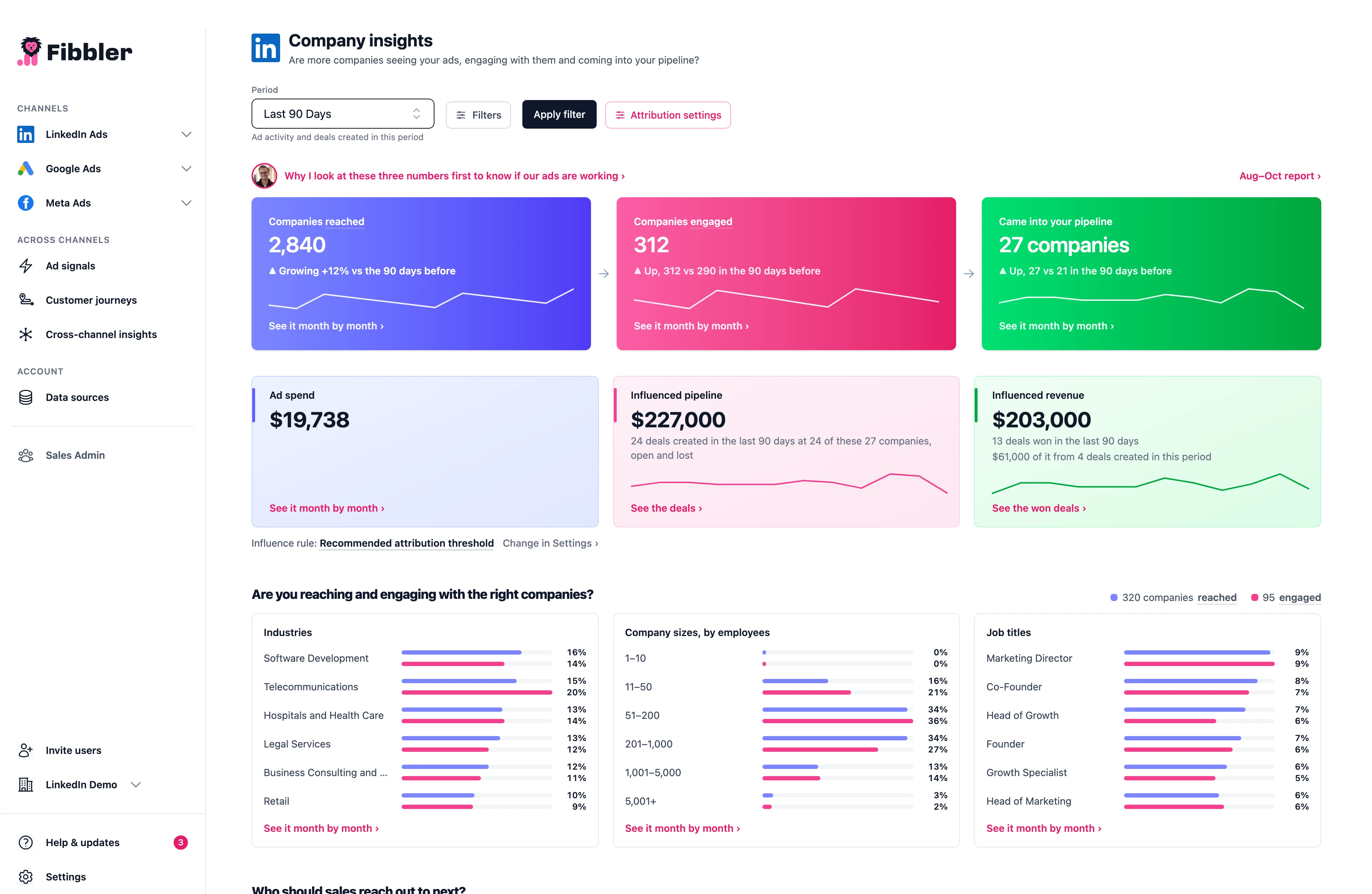
The first time you open it you see Your first insights are here, and everything else in Fibbler opens too: Campaign analytics, Audience insights, Ad signals and the rest. Until then the other pages show a lock in the menu. From there, Campaign analytics shows which ad sets reach the companies that come into your pipeline, and Customer journeys shows what happened before each deal.
That's also when you can add Google Ads and Meta Ads on Data sources. Both are free for 30 days in your trial. We explain how to set up each one in Google Ads and Meta Ads.
Want your team in too? During the trial you can invite as many colleagues as you want, from the Workspaces page. We explain what each role can do in Workspace roles.
Check how influence is set up
A new workspace starts on the recommended setting for your deal size, so there's nothing to set up. Leave it as it is unless you have a specific reason to change it. After your first visit to Company insights, you find the setting on Data sources, in the LinkedIn card, under What counts as influenced. Owners, Admins and Managers can change it.
We explain all the options in What counts as influenced.